
Overview
Before taking action on a claim, it’s important to review all available information including shipment details, customer evidence, and system-generated decision notes.
To review a claim:
Open the Claims Dashboard
Click the Claim Number
This opens the Claim Details page.
Claim Status
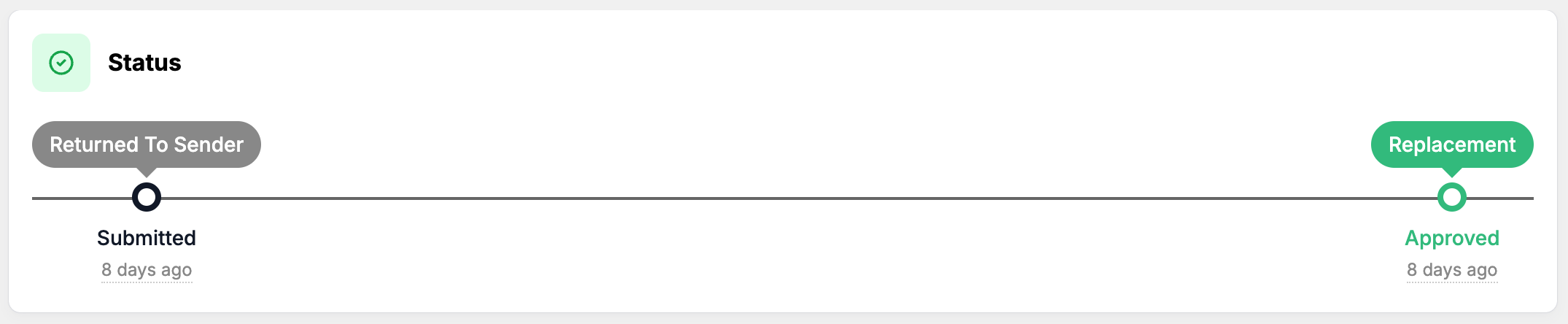
At the top of the claim page, the status timeline shows the claim progress.
Typical statuses include:
Submitted
Approved
Rejected
Invalidated
Claim Items
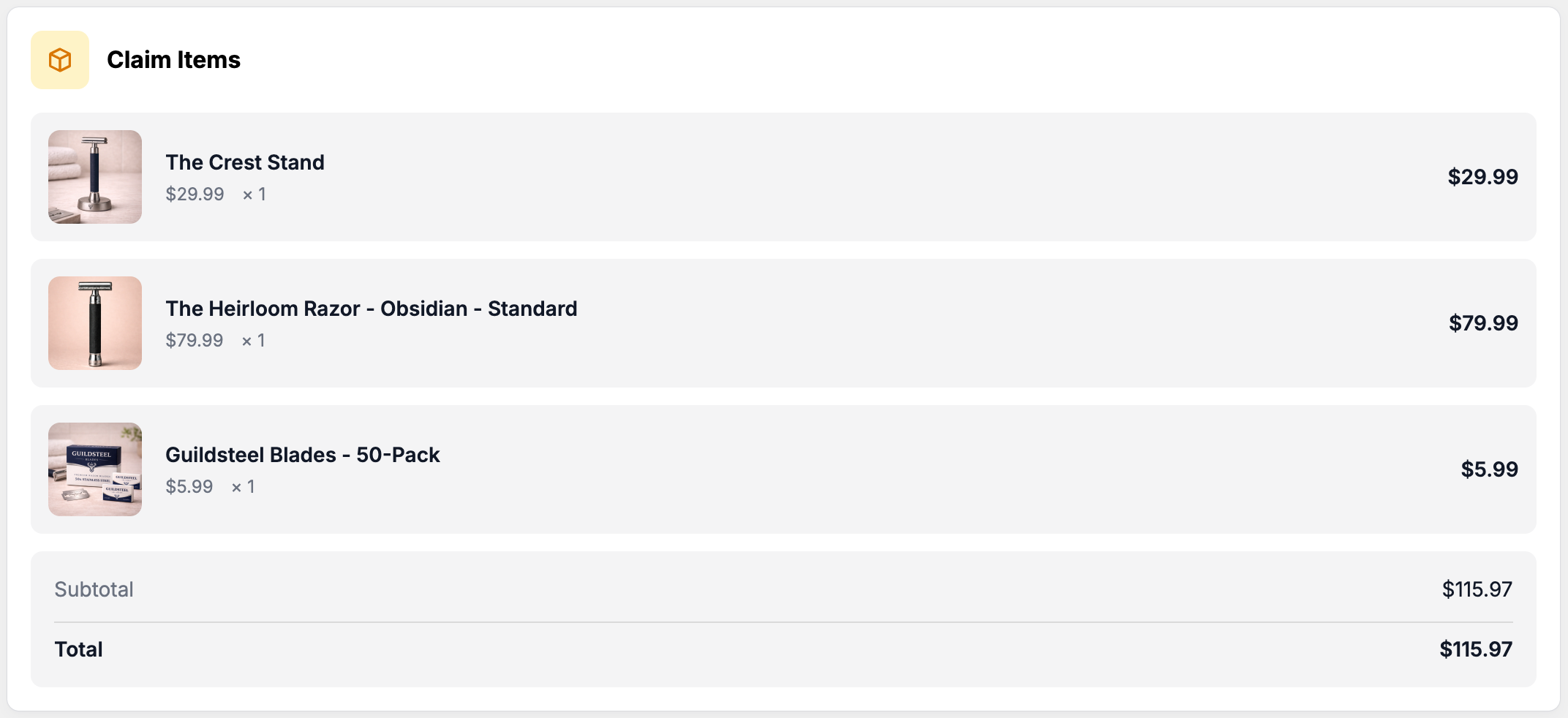
The Claim Items section lists the products included in the claim.
Information displayed includes:
Product name
Quantity
Item value
Total claim value
Customer Evidence
Customers may upload files to support their claim.
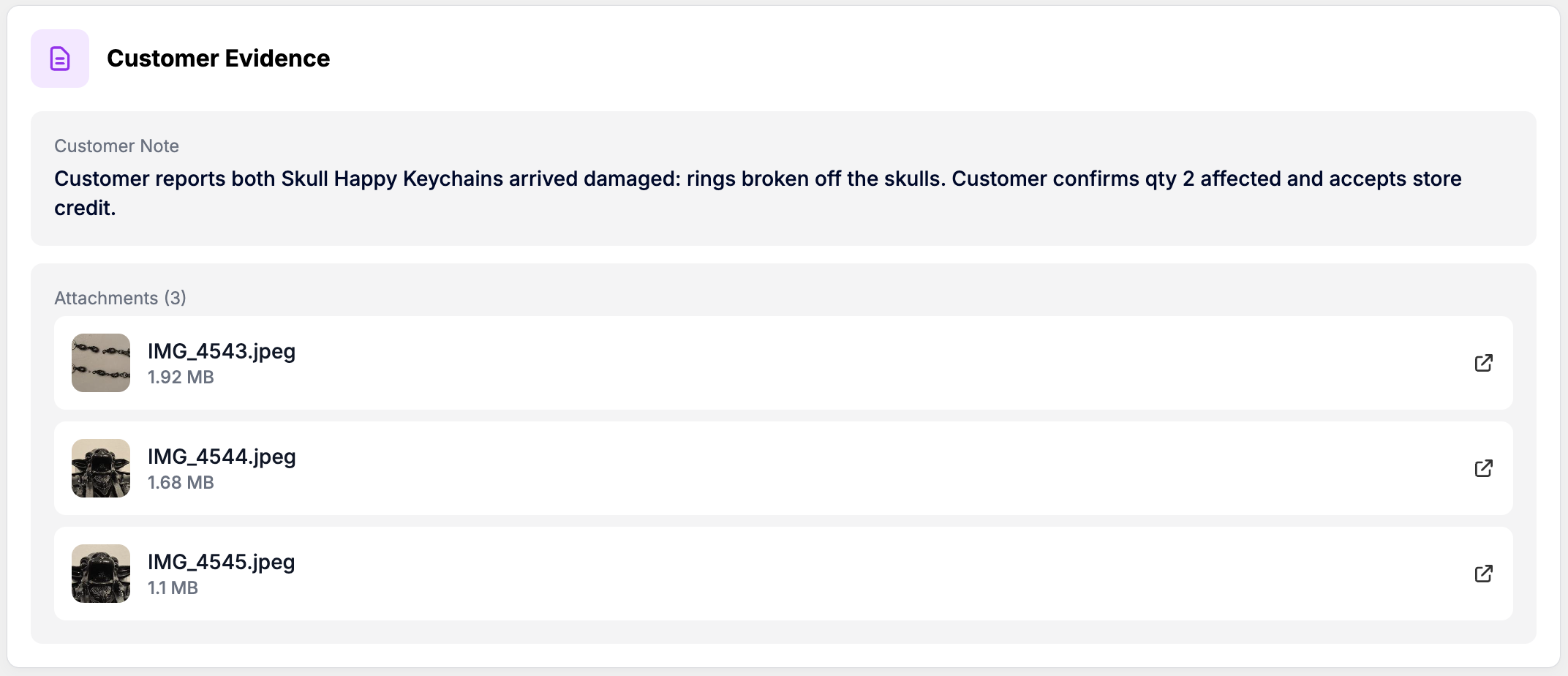
This section may include:
Photos
Videos
Documents
Written notes describing the issue
Review the evidence to verify the claim details.
Customer & Order Information
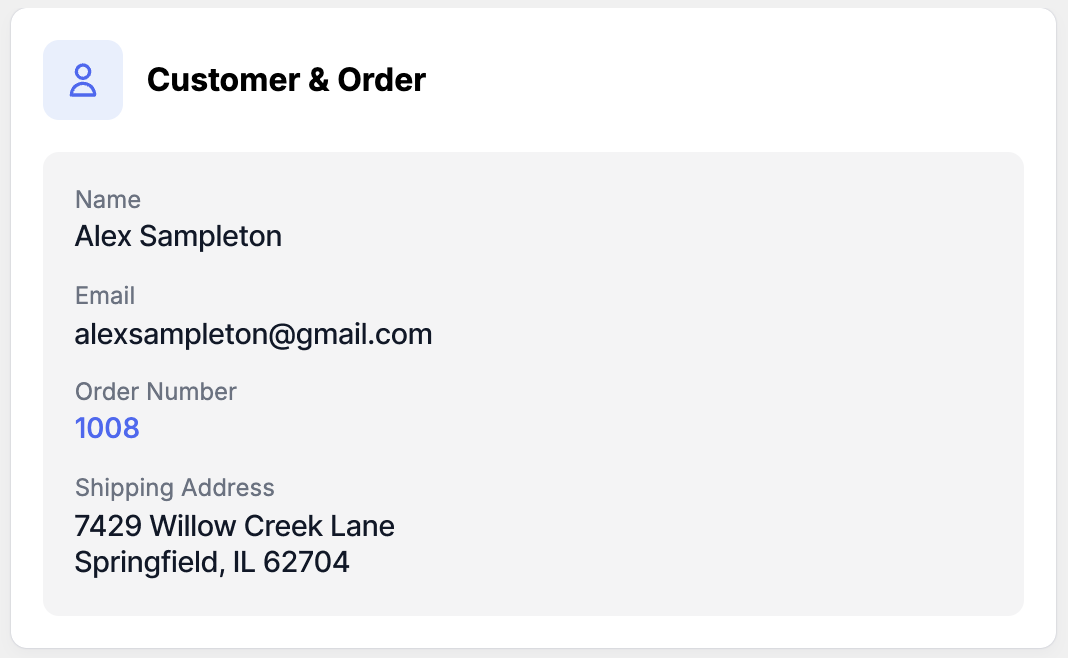
This section displays order information including:
Customer name
Customer email
Order number
Shipping address
Shipment Details
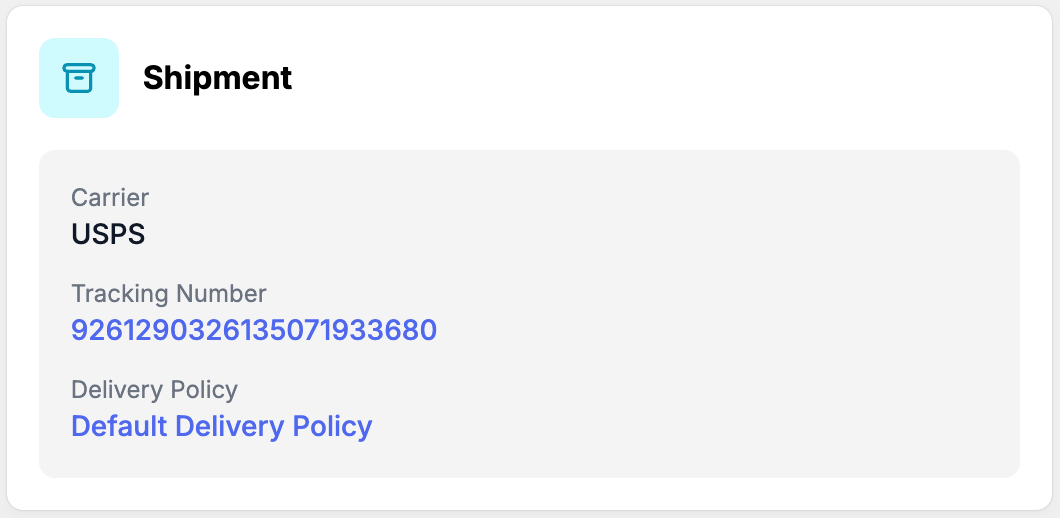
Shipment information includes:
Carrier
Tracking number
Delivery policy
This information can help determine claim eligibility.
Source
The Source section indicates how the claim was created.
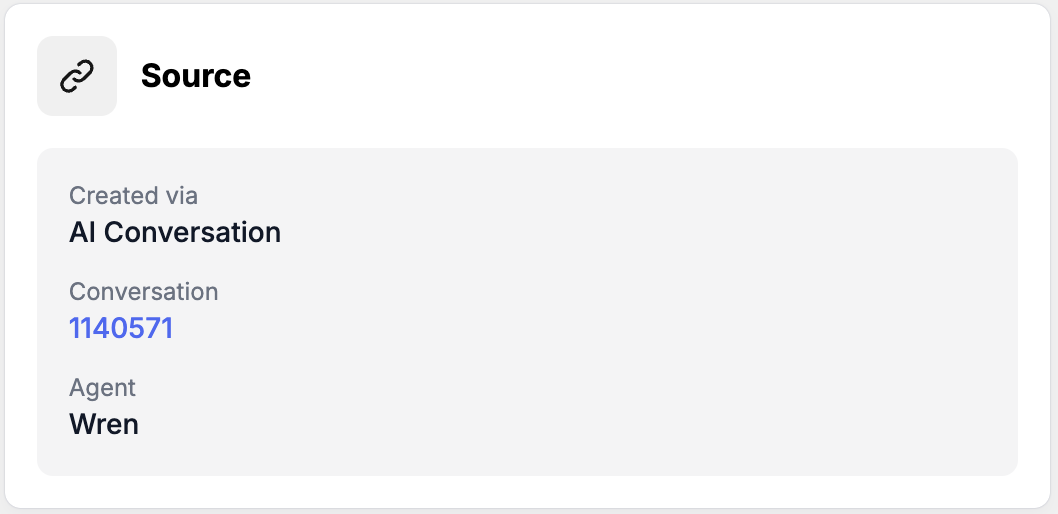
Possible sources include:
Source | Description |
|---|---|
AI Conversation | Claim created automatically during an AI support interaction |
Self-Serve | Claim manually created by a support agent |
Auto-Decision Notes
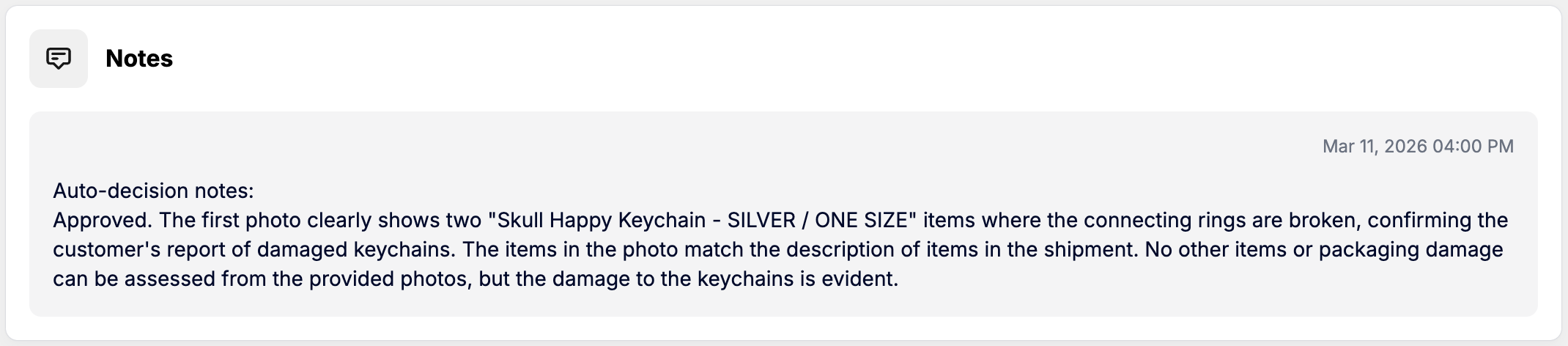
This section contains system-generated analysis of the claim including:
Order verification
Shipment verification
Evidence review
Claim eligibility reasoning
These notes help support agents understand how the system evaluated the claim.
Resolution
If a claim has already been resolved, the Resolution section will display the outcome. This section is informational only and cannot be modified.
Review this section to confirm whether a resolution has already been processed before taking further action.
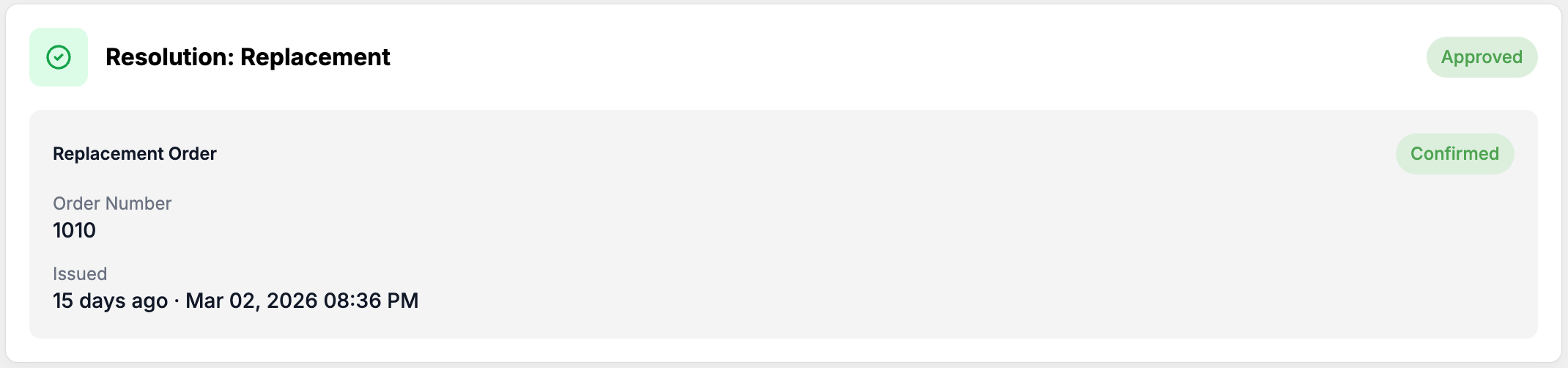
Possible resolution types include:
Refund (full or partial)
Replacement
Store Credit (full or partial)
Refund
Field | Description |
|---|---|
Amount | Total refund issued |
Status | Resolution status, such as Confirmed |
Issued Time | Timestamp when the refund was processed |
Replacement
Field | Description |
|---|---|
Replacement Order | Replacement order created for the claim |
Order Number | Order number associated with the replacement |
Status | Resolution status, such as Confirmed |
Issued Time | Timestamp when the replacement order was created |
Store Credit
Field | Description |
|---|---|
Amount | Total store credit issued |
Gift Card Code | Gift card code generated for the customer |
Status | Resolution status, such as Confirmed |
Issued Time | Timestamp when the store credit was issued |
What to Review Before Taking Action
Before approving, rejecting, or invalidating a claim, confirm the following:
The claim reason matches the customer’s issue
The correct items and quantities are included
Customer evidence supports the claim
Shipment details align with the reported problem
Auto-decision notes are reasonable and accurate
No resolution has already been processed unless additional correction is needed
If you need any assistance, please contact support@cavalry.ai.