
Overview
Invalidating a claim is used when the original claim contains incorrect information and should not be processed.
Examples include:
Incorrect claim reason
Incorrect items included in the claim
Incorrect shipment selected
Claim created in error
Invalidating a claim removes it from the active claims workflow and allows a new claim to be created for the same order.
When the Invalidate Action is Available
The Invalidate action is only available after a claim has been:
Approved, or
Rejected
It cannot be used while the claim is still in Submitted status.
Recommended Workflow for Incorrect Claims
When a claim contains incorrect information, follow this process:
Step 1 — Reject the Claim
Open the claim from the Claims Dashboard.
Click Reject.
Enter a detailed rejection reason explaining why the claim cannot be processed.
The rejection message will be sent to the customer.
Step 2 — Invalidate the Claim
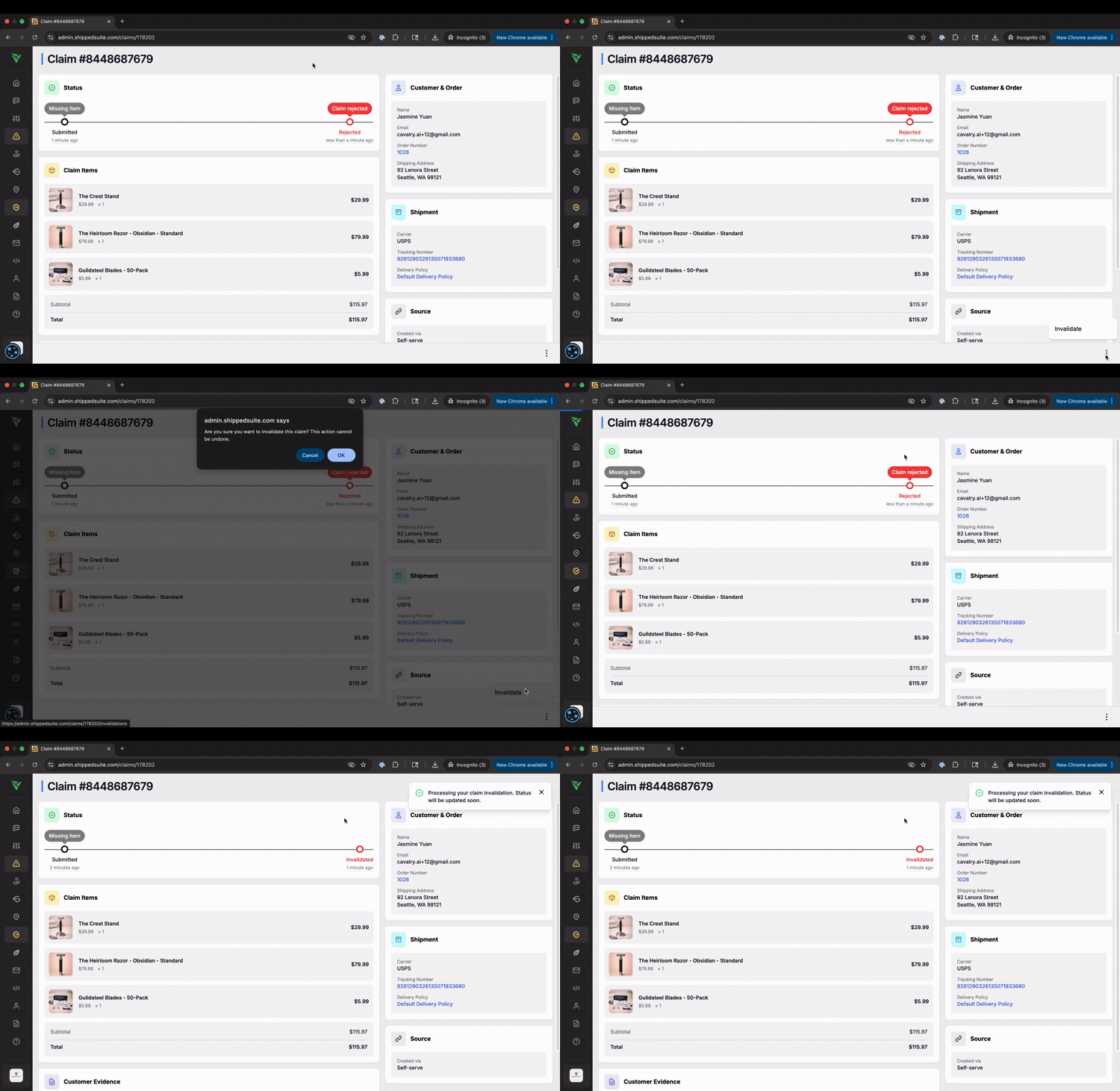
After the claim has been rejected:
Open the claim.
Scroll to the bottom-right corner of the claim page.
Click Invalidate.
Confirm the action if prompted.
The claim status will update to Invalidated.
What Happens After Invalidating
Once a claim is invalidated:
The claim is marked Invalidated in the Claims Dashboard.
The claim is removed from the active claim workflow.
A new claim can now be created for the same order.
See Creating a Manual Claim for instructions on creating a new claim.
Rare Use Case: Allowing a Return
In some situations, invalidating a claim may be necessary to allow a return to be initiated.
If an order item has an active claim tied to it, that item will not be eligible for return, even if it is still within the return policy window.
To allow the return:
Open the claim associated with the item.
Reject the claim with a clear explanation.
Invalidate the claim.
Once the claim is invalidated, the item will become eligible for return processing according to the return policy.
If you need any assistance, please contact support@cavalry.ai.