
Overview
The Claims Dashboard allows you to view and manage all customer claims related to shipment issues such as missing items, damaged products, lost packages, or incorrect items.
From this dashboard, you can:
View submitted claims
Filter claims by status or reason
Review claim values and resolution outcomes
Create new claims
Export claim data
To access the dashboard:
Log into the Cavalry Admin Portal
Navigate to Delivery Assistance
Select Claims
Claims Table Overview
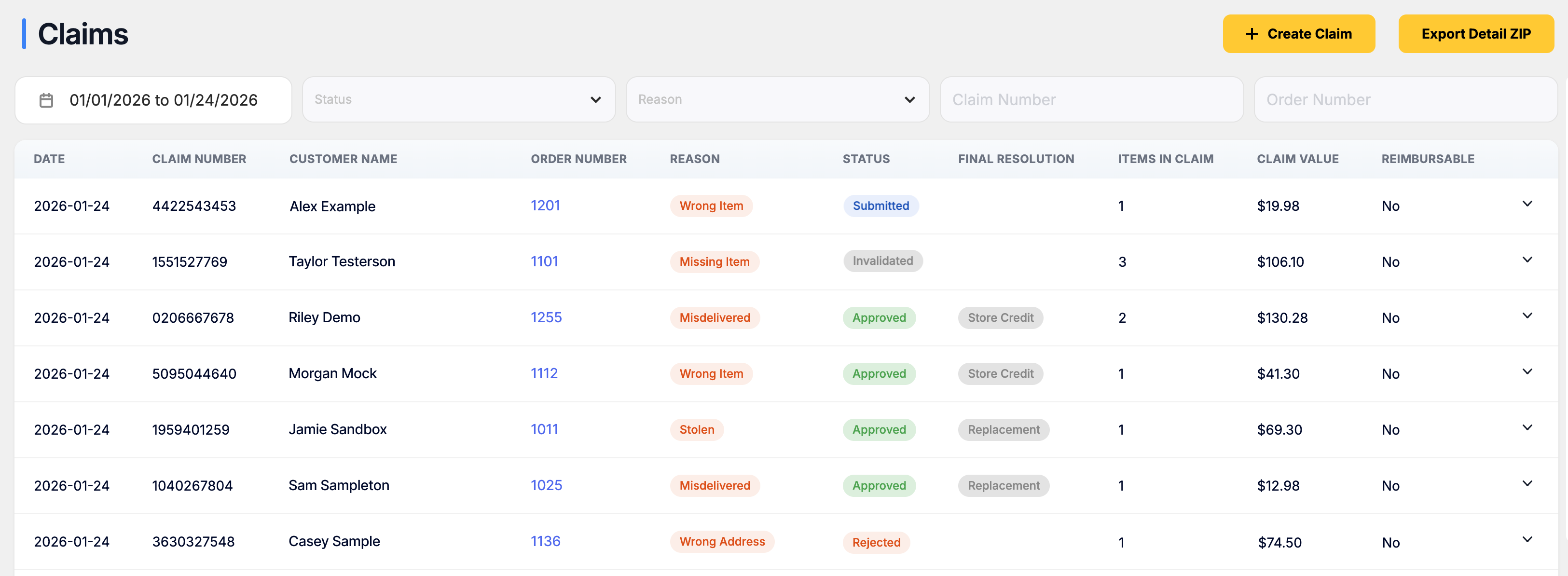
Each row in the dashboard represents a claim and displays key information.
Field | Description |
|---|---|
Date | Date the claim was submitted |
Claim Number | Unique identifier for the claim |
Customer Name | Customer associated with the order |
Order Number | Order tied to the claim |
Reason | Claim reason (Damaged, Missing Item, Lost, etc.) |
Status | Current claim status |
Final Resolution | Resolution type (Refund or Replacement) |
Items in Claim | Number of items included in the claim |
Claim Value | Total value of the claim |
Reimbursable | Whether the claim is eligible for Shipped Shield reimbursement |
Filtering Claims
You can filter claims using the controls at the top of the dashboard.
Available filters include:
Date Range
Status
Reason
Claim Number
Order Number
Filtering helps quickly locate specific claims or review claims within a time period.
Exporting Claim Data
To export claim records:
Click Export Detail ZIP in the top-right corner.
The export will include claim information and associated evidence files.
Creating a Claim
To manually create a claim, click + Create Claim in the top-right corner of the dashboard.
For detailed instructions, see Creating a Manual Claim.
If you need any assistance, please contact support@cavalry.ai.