
This guide provides an overview of how tickets are handled in Zendesk when using the Cavalry AI Agent. You’ll learn what tags to look for, how tickets move through different stages, and best practices for managing AI-handled conversations.
Conversation Handling Flow Overview
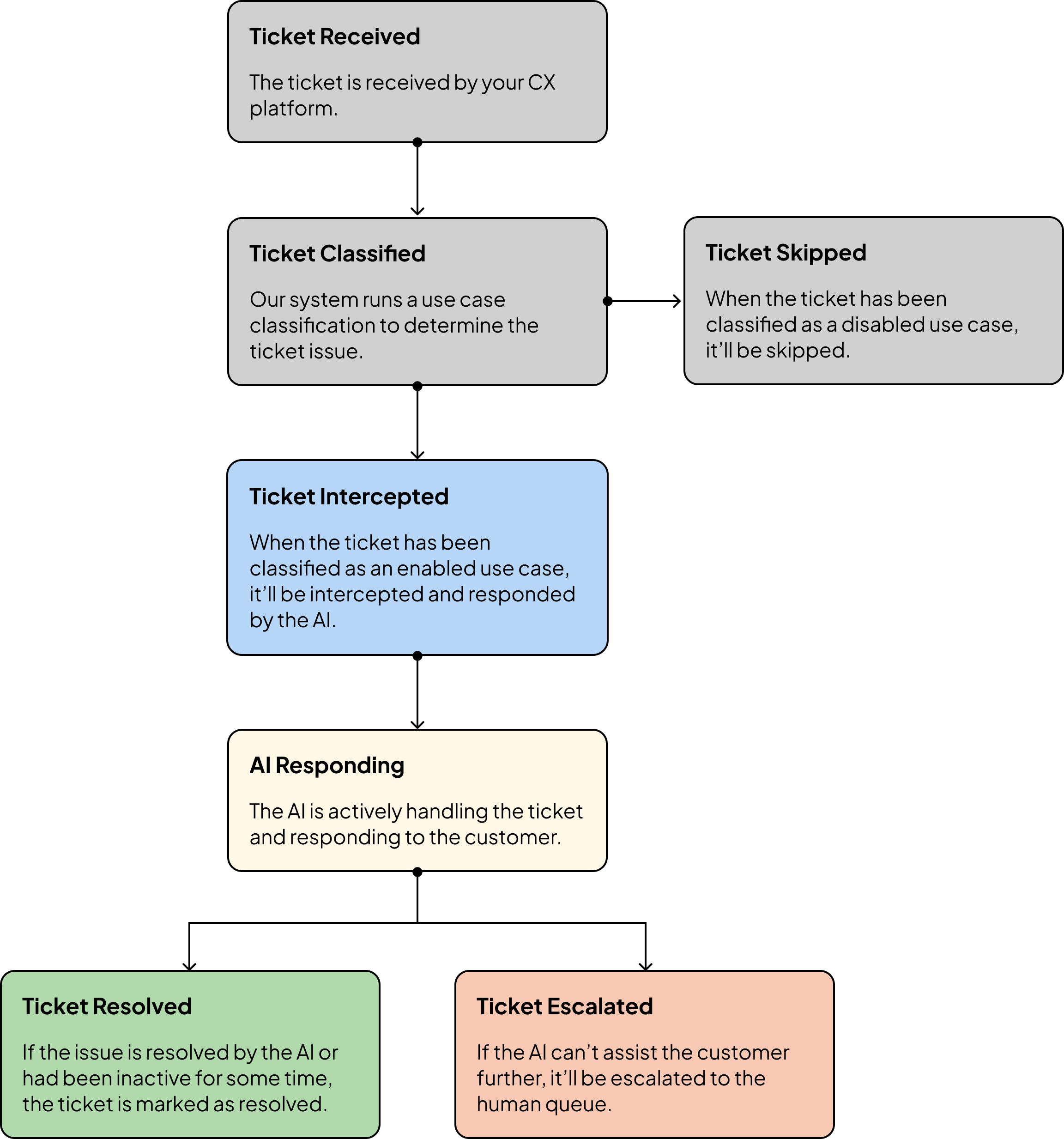
Conversation Handling in Detail
1. Ticket Intercepted
When the AI intercepts a ticket, it adds the tag shipped-ai-intercepted and sets the ticket to Pending each time it responds.
2. Ticket Resolved
When the AI determines the issue is resolved, the ticket will be tagged shipped-ai-resolved.
This can happen in two ways:
The AI proactively ends the conversation (e.g. customer says they don’t need more help).
The ticket is idle with no activity for the specified auto-end period configured.
Idle default auto-end periods, which can be adjusted in the Platform Settings:
Synchronous conversations (e.g. chat) = 15 minutes
Asynchronous conversations (e.g. email, sms) = 3 days
3. Ticket Escalated
If the AI cannot resolve the issue, it escalates the ticket.
What happens:
The ticket is tagged
shipped-ai-escalated.Status changes to Open.
The AI agent is unassigned from the ticket.
An internal note is added with a summary of the conversation.
4. Manual Intervention
If you need to take over an active AI conversation:
Open the AI-handled ticket.
Add the tag
shipped-ai-intervened.Reply to the customer directly.
⚠️ Best practice: Only intervene if absolutely necessary — this allows Cavalry to collect data to further improve the AI.
5. Ticket Fields
The AI has the ability to complete ticket field with the following in mind.
Only required field on Zendesk will be completed by the AI. Optional or Conditional fields will not be completed.
When a ticket is escalated, the human agent is responsible for completing the ticket fields.
If you'd like to have the AI to completed optional or conditional fields, you can do one of the following:
Make the fields required on Zendesk, including an option for "N/A"
Add the fields as a required field in Merchant Admin, Zendesk integration settings.
Special Cases
Resolved in Another Channel
If the customer’s issue was resolved elsewhere (e.g., chat or phone):
Open the AI-handled ticket.
Add the tag
shipped-ai-intervened.Manually close the ticket.
Merging AI & Human Tickets
If there are duplicate tickets (one handled by AI, one by a human):
Open the AI-handled ticket.
Add the tag
shipped-ai-intervened.Merge the AI ticket into the human-handled ticket.
Viewing AI Tickets
We recommend creating filtered views to track AI-handled tickets.
To create a view for AI-intercepted tickets:
In Zendesk, go to Views in the left menu.
Click Create View.
Add a filter for Tags.
Select containing at least one.
Enter
shipped-ai-intercepted.Add any other desired or required conditions.
Create view.
👉 Repeat the same steps with other tags to create views for:
Escalated tickets (
shipped-ai-escalated)Resolved tickets (
shipped-ai-resolved)
Feedback Collection
Submitting feedback helps refine the AI’s performance.
To submit feedback on a ticket:
Open the ticket in Zendesk.
Add an internal note mentioning the AI agent (e.g.,
@Duke Feedback: The AI didn’t provide the right policy info.).Submit — Cavalry receives the feedback automatically.
To track submitted feedback:
Review the list of submitted feedback.
Click into an entry to see:
The feedback details
Any discussion or notes
Current status (open, in review, resolved)
AI-Related Tags
shipped-ai-intercepted: AI is actively handling the ticket.shipped-ai-resolved: Ticket resolved by the AI.shipped-ai-intervened: A human agent has taken over; AI will no longer respond.shipped-ai-escalated: Ticket escalated to a human agent.shipped-ai-failed-kb-search: AI could not find a relevant knowledge base article (useful for spotting content gaps).
If you have any questions about the flow or need any assistance, please contact support@cavalry.ai.